Ad: this guide contains affiliate links. If you buy through them we may earn commission, at no extra cost to you.
Electronics
Choosing a Kids' Tablet: Parental Controls, Cases and Screen Time
How to choose a kids' tablet that is tough, safe and easy to manage, with plain-English tips on parental controls, cases, storage and screen time habits.
By Daily Offer Deals editorial teamUpdated 6 min read
On this page 9 sections
Quick answer
The best kids’ tablet is one with strong, easy-to-use parental controls, a protective case, enough storage for downloaded apps and videos, and a screen and battery that suit how your child will use it. “Kids edition” tablets usually bundle a child-friendly case and a kids’ mode, which saves setup time. In the UK, the Royal College of Paediatrics and Child Health (RCPCH) does not set fixed screen time limits; instead it suggests families agree limits together and avoid screens for the hour before bed.
Start with how your child will use it
Before comparing models, think about the main jobs the tablet will do:
- Videos and games at home – a decent screen and Wi-Fi are what matter.
- Long car journeys and flights – storage for downloads and good battery life matter more.
- Learning apps and reading – a comfortable screen size and an app library that includes the services your child’s school uses.
- Video calls with family – a front camera and a simple way to approve contacts.
Most families do not need a cellular (SIM) model for a young child. Wi-Fi only is usually cheaper and easier to control.

Parental controls: the most important feature
A tablet is only as safe as the way it is set up. Look for controls that let you:
- Create a child profile separate from your own account.
- Approve apps and purchases before they are downloaded.
- Filter content by age rating across apps, video and web browsing.
- Set daily time limits and downtime, such as no use after a certain hour.
- See activity reports, so you can talk about what they enjoy.
Most major platforms offer this. Android tablets can use Google Family Link, and many Samsung tablets include a dedicated kids’ mode. Apple’s iPad uses Screen Time and Family Sharing, and Amazon’s Fire tablets have their own kids’ profiles. Spend half an hour setting things up before the tablet is handed over, and revisit the settings as your child grows.
Parental controls are a safety net, not a replacement for supervision. For younger children, keeping tablets in shared family spaces, rather than bedrooms, makes it easier to see what is happening. The NSPCC and Internet Matters both publish free, practical guides on setting up controls on popular devices.
Cases and toughness
Tablets get dropped, sat on and occasionally used as a tray. A good case is essential.
| Feature | Why it matters | What to look for |
|---|---|---|
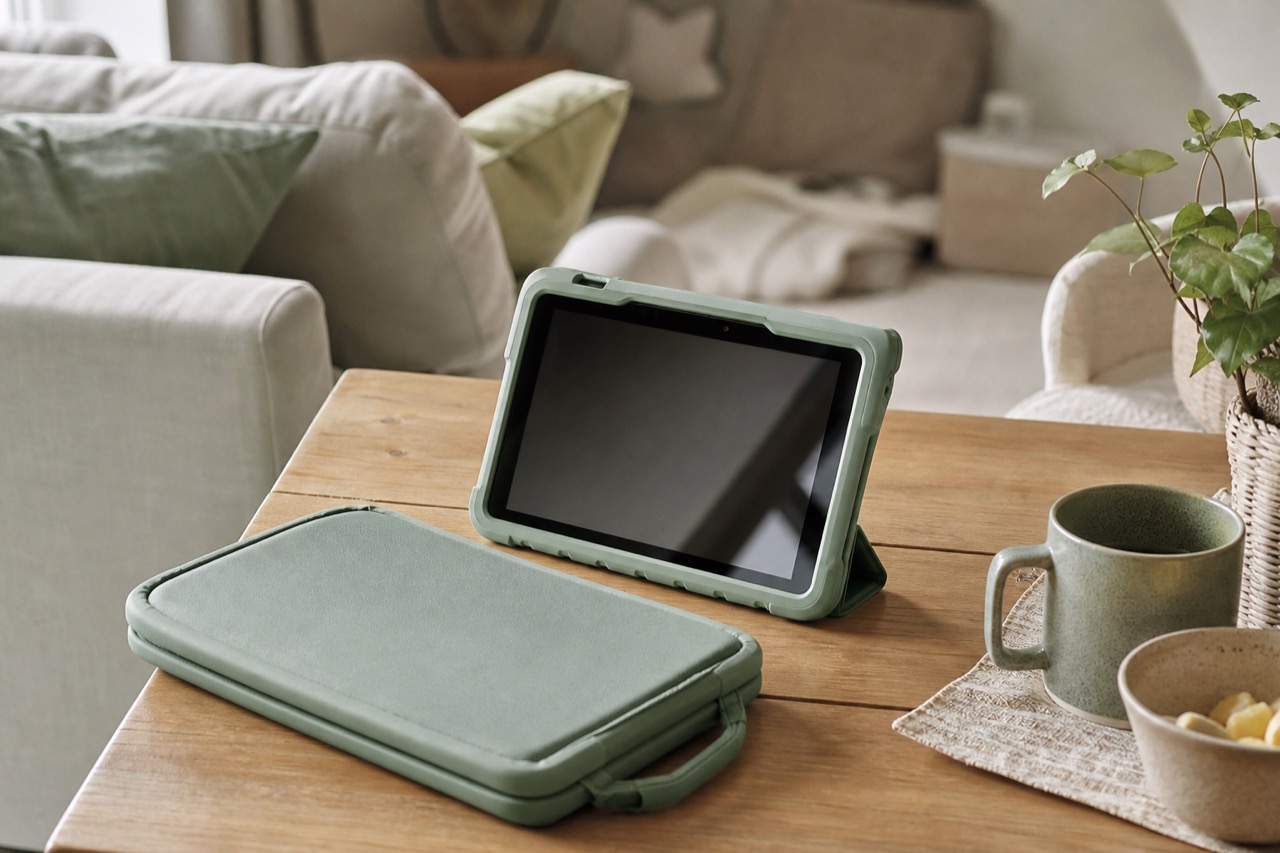
| Thick, shock-absorbing case | Protects against drops | Raised edges around the screen, chunky corners |
| Built-in handle or stand | Easier for small hands, hands-free viewing | A handle that folds into a stand |
| Screen protector | Guards against scratches and cracks | Tempered glass or a film designed for your exact model |
| Easy-clean surface | Sticky fingers are inevitable | Wipeable foam or silicone |
“Kids edition” bundles often include a chunky case. If you buy a standard tablet instead, budget for a well-fitting case and screen protector at the same time.
Storage, screen and battery
Storage
Apps, games and downloaded videos take up space quickly. More storage is useful if you plan to download shows for travel. Some Android tablets accept a microSD card for extra space; check the listing.
Screen
An 8 to 11-inch screen suits most children. Larger screens are better for drawing and reading; smaller ones are lighter to hold.
Battery and charging
Check the manufacturer’s stated battery life and the charging connector. USB-C is now common, which means you can share chargers with other family devices.
The deal on our radar
| Product | Best for | What to look for | Deal |
|---|---|---|---|
| Samsung Galaxy Tab A11 Kids Edition, Wi-Fi, 64GB | Families who want an Android tablet ready for a child | Check what is in the box (case, kids’ mode features) and how parental controls are set up | Samsung Galaxy Tab A11 Kids Edition |
Whichever tablet you choose, check which apps your child’s school or nursery uses, and make sure they are available on that platform.
Healthy screen time habits
The RCPCH’s guidance says there is not enough evidence to set age-specific time limits. Instead it encourages families to think about whether screen use is getting in the way of sleep, exercise, family time or other activities. Questions it suggests asking include:
- Is screen time in your household under control?
- Does screen use interfere with what your family wants to do?
- Does it interfere with sleep?
- Are you able to control snacking during screen time?
It also recommends avoiding screens for the hour before bedtime. For very young children, many parents find it helps to watch or play together and talk about what is on screen.
Practical ideas that many families find useful
- Agree simple rules together, such as tablets away at meals and an hour before bed.
- Charge devices outside bedrooms overnight.
- Use timers or downtime in the parental controls, so the tablet becomes the “bad guy”, not you.
- Mix in screen-free favourites. Picture books, puzzles and outdoor play keep things balanced. A book set such as The Gruffalo and Friends Advent Calendar Book Collection can make bedtime reading a daily treat in December.
- Model the habits you want to see, which is often the hardest part.
Setting up the tablet: a quick checklist
- Update the tablet’s software before handing it over.
- Create your child’s profile and link it to your parent account.
- Set content filters by age.
- Require approval for all downloads and in-app purchases.
- Set daily limits and bedtime downtime.
- Turn off or limit chat features in games and apps.
- Add a case and screen protector.
- Explain the rules to your child and agree them together.
FAQ
What age is right for a first tablet?
There is no official age. Many families introduce a shared tablet for supervised use before a child has their own. Think about your child’s maturity, how you will supervise it, and whether parental controls can be set up properly.
Is a kids’ edition tablet worth it over a standard one?
Kids’ editions typically bundle a protective case and a child-friendly mode, which saves setup and the cost of buying a case separately. A standard tablet with good parental controls and a sturdy case can work just as well.
How much screen time is OK for children in the UK?
The RCPCH does not recommend fixed limits by age. It suggests families agree limits based on their child’s needs, make sure screens do not displace sleep, exercise or family time, and avoid screens for the hour before bed.
Do kids need a tablet with a SIM card?
Usually not. A Wi-Fi only tablet is often cheaper and easier to manage. Download shows and games before trips so they work offline.
About the author
Daily Offer Deals editorial team
The Daily Offer Deals team checks UK deals by hand and writes practical buying guides. We never claim hands-on testing we have not done.