
Ad: this guide contains affiliate links. If you buy through them we may earn commission, at no extra cost to you.
Electronics
Mesh Wi-Fi: Does Your Home Need It?
Patchy Wi-Fi upstairs or in the garden office? Here's how mesh Wi-Fi works, when it helps, when it won't, and what to look for before you buy.
By Daily Offer Deals editorial teamUpdated 6 min read
On this page 13 sections
Quick answer
Mesh Wi-Fi uses two or more units placed around your home that work together as one network, so you get more even coverage than from a single router. It is most useful in larger homes, houses on several floors, homes with thick walls, and garden offices. If your problem is slow broadband coming into the house, mesh will not fix it. Try moving your router first; if dead spots remain, mesh is often the simplest upgrade.
What mesh Wi-Fi actually is
A traditional setup has one router, often supplied by your broadband provider, broadcasting Wi-Fi from wherever the line comes in. That might be a hallway or a cupboard at one end of the house. Signal weakens through walls, floors and distance, so rooms far away get slower, less reliable Wi-Fi.
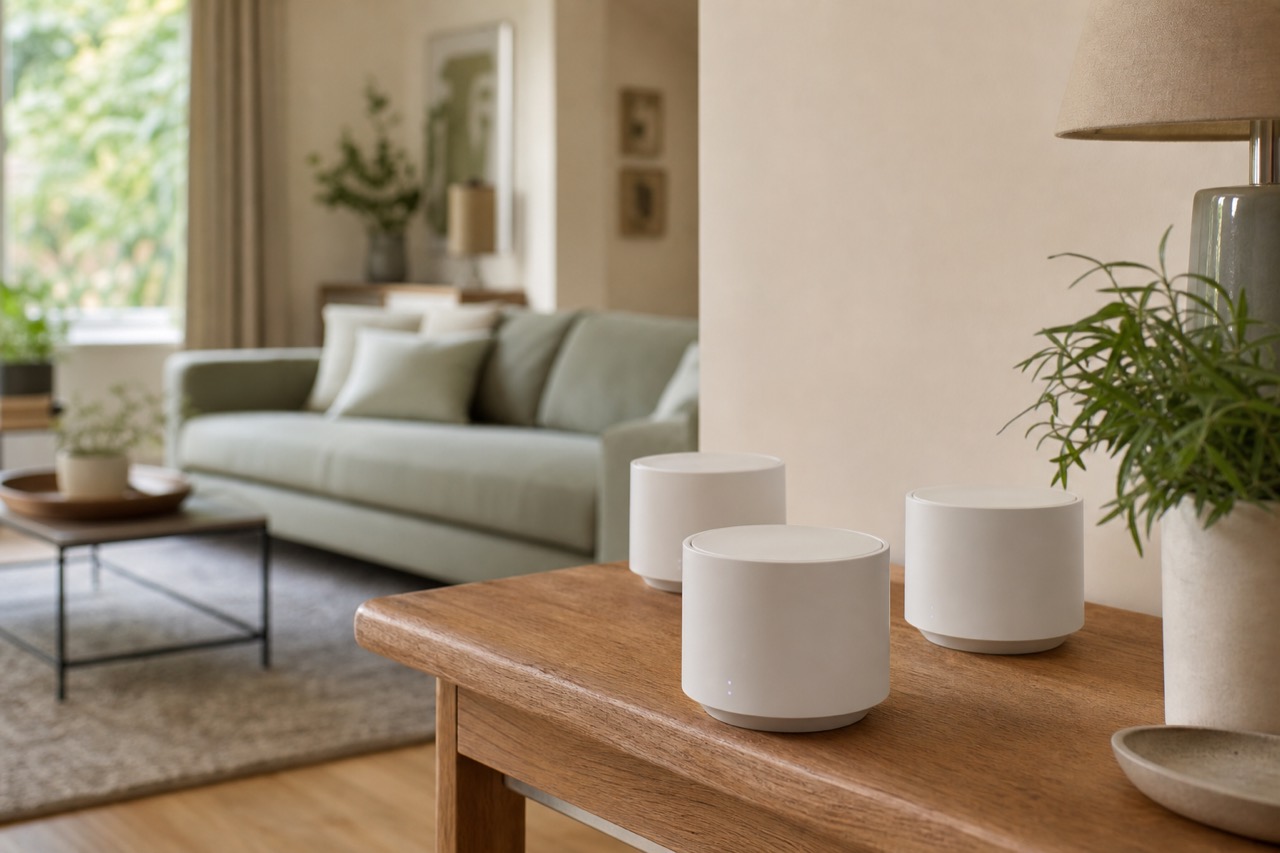
A mesh system replaces or works alongside that router with a set of units, sometimes called nodes or satellites. One connects to your broadband; the others are spread around the home. They talk to each other and create a single network name and password. As you move around, your devices switch to the best unit automatically.
Signs your home might benefit
- Video calls freeze in certain rooms but not others.
- Wi-Fi drops out upstairs, in a loft conversion or in the kitchen extension.
- You have a garden office or studio that barely gets a signal.
- You have lots of connected devices: smart speakers, cameras, TVs, consoles.
- You already use Wi-Fi extenders and keep switching between network names.
When mesh won’t help
Mesh improves coverage inside your home. It cannot speed up the broadband line coming in. If your Wi-Fi is slow even when you stand next to the router, the issue may be your broadband package, the line, or the router itself. Run a speed test next to the router with a wired connection if you can, and compare it with what your contract promises. If it is much lower, speak to your provider first.
Try these simple fixes first
- Move the router. Put it somewhere central and high, out in the open rather than in a cupboard or behind the TV.
- Restart it and check for firmware updates.
- Keep it away from obstacles such as mirrors, fish tanks and metal.
- Use a wired connection for devices that don’t move, like a desktop PC or games console.
- Ask your provider whether they offer a newer router or Wi-Fi booster.
If you still have dead spots after these steps, mesh is worth considering.
Mesh vs extenders vs powerline
| Option | Best for | What to look for | Things to know |
|---|---|---|---|
| Mesh Wi-Fi | Whole-home coverage in medium to large homes | Number of units, Wi-Fi standard, wired backhaul ports | One network name; usually the smoothest experience |
| Wi-Fi extender | Fixing one weak room on a budget | Dual-band, placed halfway between router and dead spot | Can create a separate network and reduce speed |
| Powerline adapters | Getting a connection to a far room or outbuilding via electrical wiring | Pass-through socket, built-in Wi-Fi | Performance depends on your home’s wiring |
| Ethernet cabling | The fastest, most reliable link to a fixed spot | Neat routing, Cat6 cable | Hassle to install, but very dependable |
Wi-Fi 6, 6E and 7: what’s the difference?
- Wi-Fi 6 improves efficiency when lots of devices share the network. It is now a sensible baseline.
- Wi-Fi 6E adds the 6GHz band, which is less crowded and can be fast over short distances. Your phone, laptop or tablet must support Wi-Fi 6E to use it.
- Wi-Fi 7 is the newest standard. It can be faster still, but devices that support it are less common and systems usually cost more.
Older devices still connect to newer systems using the standards they support.
How many units do you need?
There is no one rule, because walls, layout and building materials make a big difference. As a rough starting point:
- Flat or small house: a single good router may be enough; a two-unit system if you have thick walls.
- Typical two or three-bedroom house over two floors: two or three units.
- Larger homes, extensions or garden offices: three units, potentially with one placed near the outbuilding.
Manufacturers often state an approximate coverage area. Treat it as a guide, not a promise.
Wired backhaul: a hidden bonus
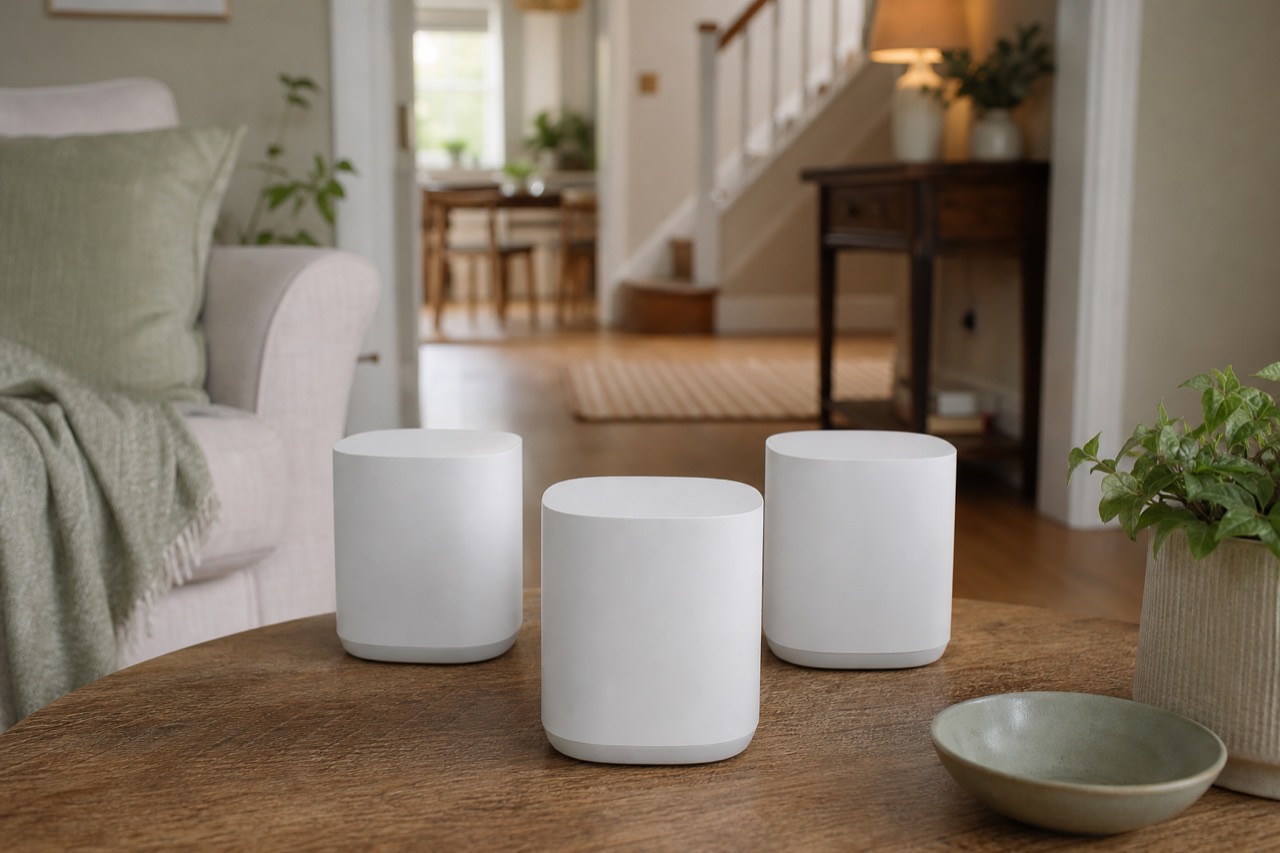
The connection between mesh units is called backhaul. Units can talk to each other over Wi-Fi, but if you can link them with an Ethernet cable, performance and reliability usually improve. Look for units with spare Ethernet ports, which are also useful for TVs and consoles.
The deal on our radar
| Product | Best for | What to look for | Deal |
|---|---|---|---|
| TP-Link Deco AXE5400 Pro Mesh Wi-Fi 6E System | Homes with Wi-Fi 6E devices and patchy coverage across floors | Number of units in the pack, Ethernet ports and whether your provider’s router can be set to modem or bridge mode | TP-Link Deco AXE5400 Pro Mesh Wi-Fi 6E System |
If you are adding Wi-Fi security cameras, such as the eufyCam C35 Wireless Security Camera, strong coverage near doors and gardens matters. Placing a mesh unit nearby can help keep them connected.
Setting up mesh: what to expect
Most mesh systems use a phone app that walks you through setup in a few steps:
- Connect the main unit to your existing router or broadband modem with an Ethernet cable.
- Create your network name and password. Reusing your old ones can make the switch smoother for existing devices.
- Place the other units roughly halfway between the main unit and the areas with poor signal. Don’t put them in the dead spot itself.
- Use the app’s signal checks to fine-tune placement.
- Turn off your old router’s Wi-Fi if you are keeping it as a modem, to avoid two competing networks.
Some broadband providers’ routers need a setting changed for mesh to work best. Check your provider’s help pages.
Security and privacy basics
- Use a strong, unique Wi-Fi password and the latest security settings the system offers (WPA3 where available).
- Keep the firmware updated; most mesh systems can do this automatically.
- Set up a guest network for visitors and smart devices if you want to keep them separate.
FAQ
Will mesh Wi-Fi make my broadband faster?
Not beyond what your line delivers. It can make Wi-Fi more consistent around the home, which often feels faster in rooms that used to struggle.
Can I use mesh with my broadband provider’s router?
Usually, yes. You connect the main mesh unit to your existing router. Some setups work best if the provider’s router is set to modem or bridge mode, or if its Wi-Fi is turned off.
Is mesh better than a Wi-Fi extender?
For whole-home coverage, mesh is generally smoother because it creates one network and manages connections automatically. An extender can be a cheaper fix for a single weak room.
Do I need Wi-Fi 6E?
Only if you have devices that support it and want to use the less crowded 6GHz band. Otherwise, a Wi-Fi 6 system is a sensible choice.
About the author
Daily Offer Deals editorial team
The Daily Offer Deals team checks UK deals by hand and writes practical buying guides. We never claim hands-on testing we have not done.